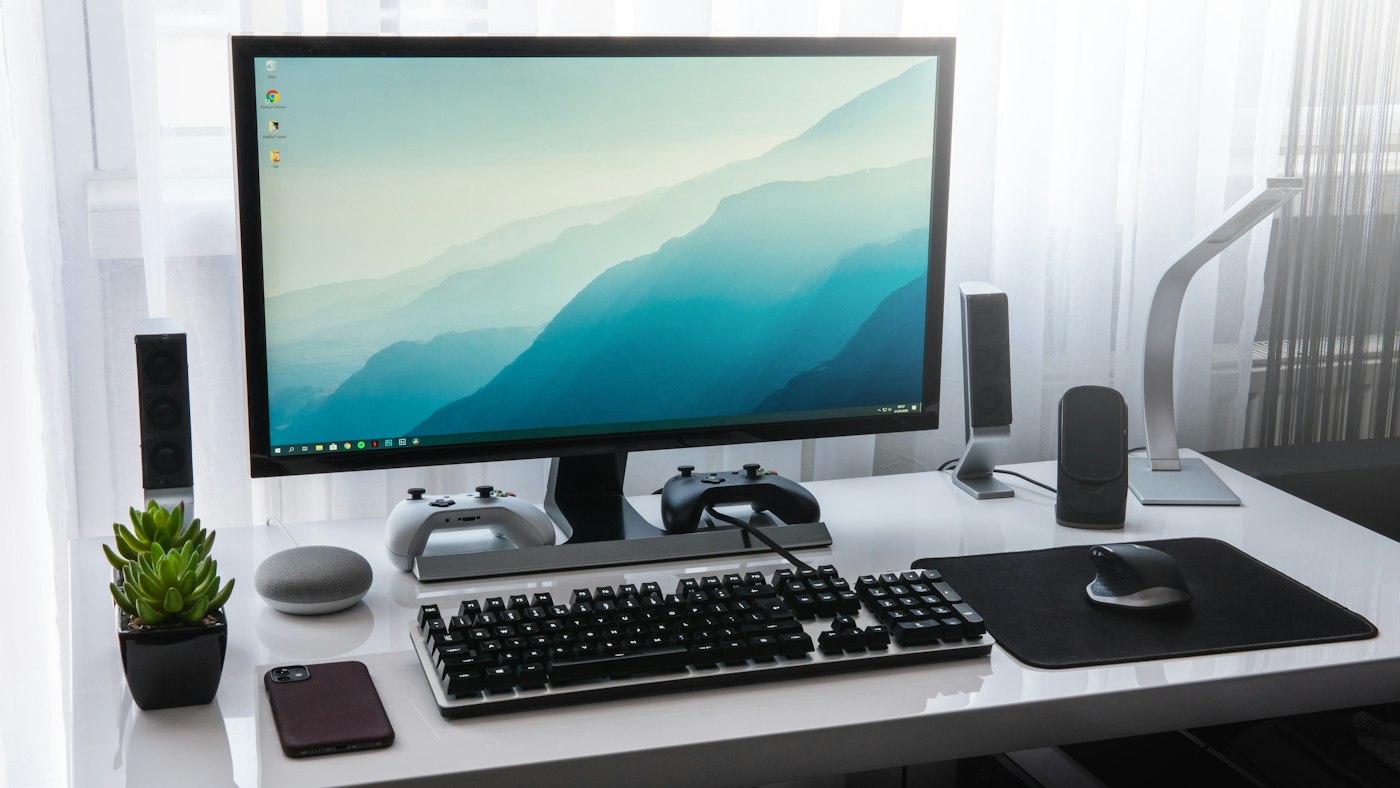










Keyboard problems can be caused by settings, drivers, or dirt under the keys.
1. Restart the computer
This often fixes temporary glitches.
2. Check connections
Reconnect USB keyboards or replace batteries in wireless ones.
3. Turn off Filter Keys
On Windows, Settings > Accessibility > Keyboard, and turn off Filter Keys and Sticky Keys.
4. Clean the keyboard
Turn it off and use compressed air to remove crumbs.
5. Update the driver
Device Manager > Keyboards > Update driver.
6. Use the on-screen keyboard
As a temporary option, use the on-screen keyboard.