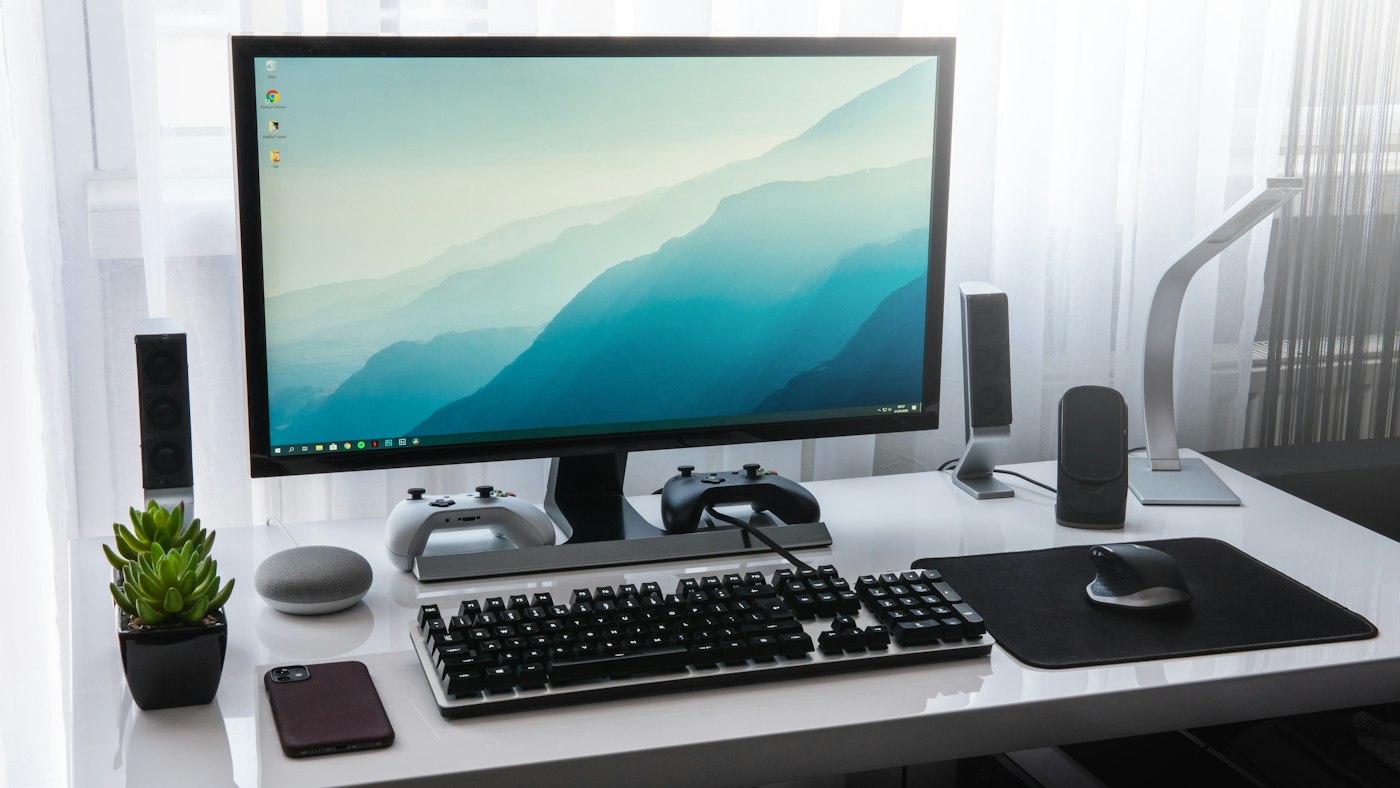










Keyboard problems can be caused by settings, drivers, or dirt under the keys.
Before You Start
- Check keyboard connection or batteries.
- Restart the computer.
1. Restart the computer
This often fixes temporary glitches.
2. Check connections
Reconnect USB keyboards or replace batteries in wireless ones.
3. Turn off Filter Keys
On Windows, Settings > Accessibility > Keyboard, and turn off Filter Keys and Sticky Keys.
4. Clean the keyboard
Turn it off and use compressed air to remove crumbs.
5. Update the driver
Device Manager > Keyboards > Update driver.
6. Use the on-screen keyboard
As a temporary option, use the on-screen keyboard.
Why This Happens
Keyboards stop working due to loose connections, dead batteries, driver issues, accessibility settings or spills.
Still Not Working? Try These Advanced Fixes
- Try the keyboard on another computer.
- Uninstall the keyboard driver and restart.
- Check BIOS if the keyboard works there.
How to Prevent This Problem
- Keep drinks away.
- Clean regularly.
Quick Troubleshooting Table
| Problem | Try this |
|---|---|
| No keys work | Check connection |
| Some keys fail | Clean keyboard |
| Wrong characters | Check language settings |
Frequently Asked Questions
Why are keys typing wrong letters?
Keyboard language layout may be wrong.
What if I spilled liquid?
Turn off, unplug and let it dry fully.