







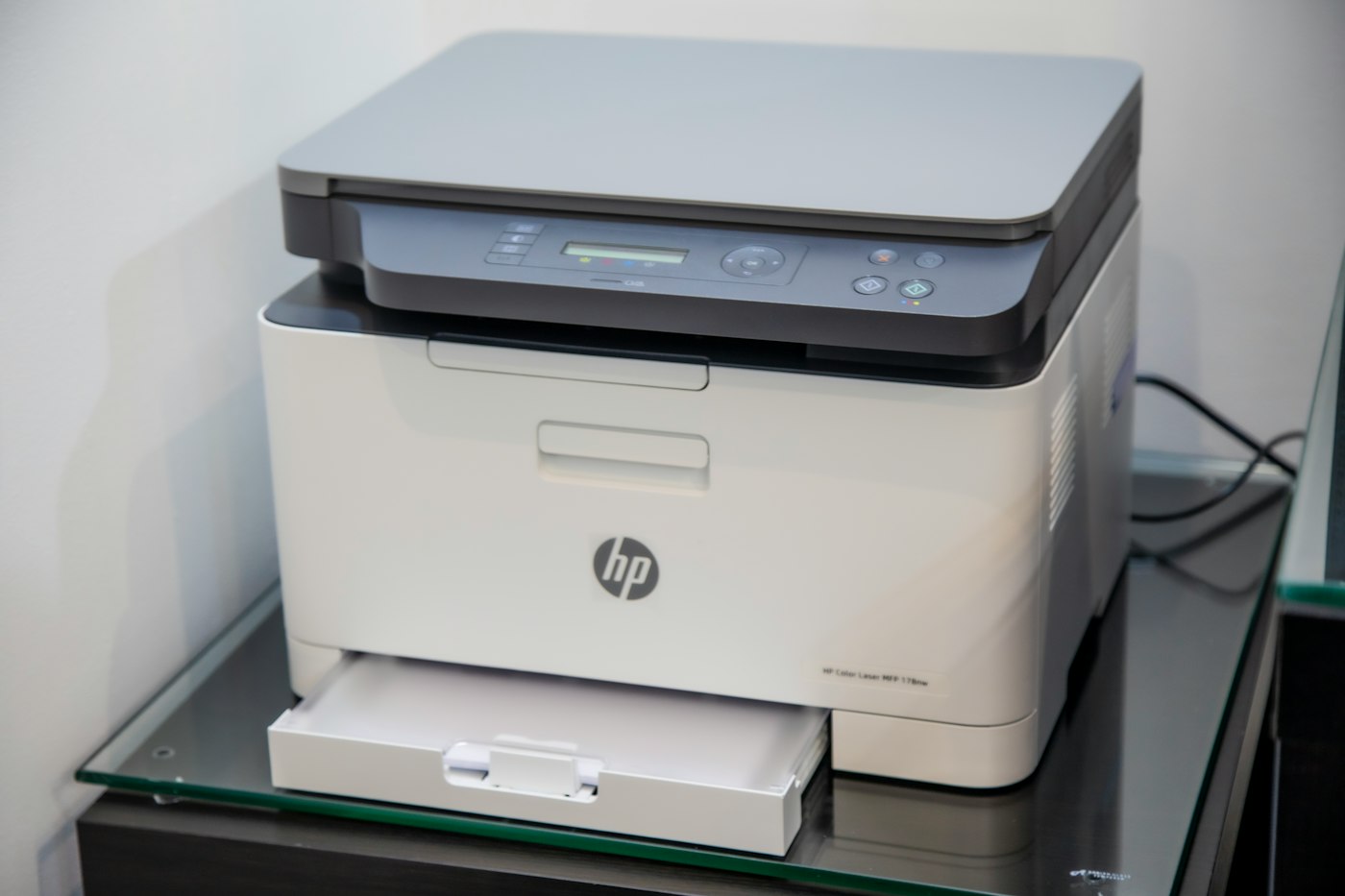
An offline printer usually has lost its connection to your computer or network.
Quick fix: Restart the printer and your computer, then check it’s on the same Wi-Fi.
Before You Start
- Check printer power and Wi-Fi.
- Restart printer and computer.
1. Restart printer and PC
Turn both off and on.
2. Check the connection
For USB, reconnect the cable. For Wi-Fi, make sure the printer is on the same network as your computer.
3. Turn off “Use Printer Offline”
On Windows, open Settings > Bluetooth & devices > Printers & scanners > your printer > Open print queue, then untick Use Printer Offline in the Printer menu.
4. Clear the print queue
Cancel all stuck documents in the queue.
5. Set as default printer
Make sure you’re printing to the right printer.
6. Reinstall the printer
Remove it and add it again, or install the latest driver from the manufacturer.
Why This Happens
Printers show offline when they lose connection, change IP address or when Windows sets “Use Printer Offline”.
Still Not Working? Try These Advanced Fixes
- Assign a fixed IP address to the printer in router settings.
- Reinstall printer drivers.
- Use the manufacturer’s app to reconnect.
How to Prevent This Problem
- Keep printer on the same network.
- Update drivers.
Quick Troubleshooting Table
| Problem | Try this |
|---|---|
| Offline on Wi-Fi | Reconnect to Wi-Fi |
| Offline on USB | Reconnect cable |
| Stuck jobs | Clear queue |
Frequently Asked Questions
Why does my printer keep going offline?
It may change IP address or go to sleep.
Can I print from phone?
Most modern printers support mobile printing.