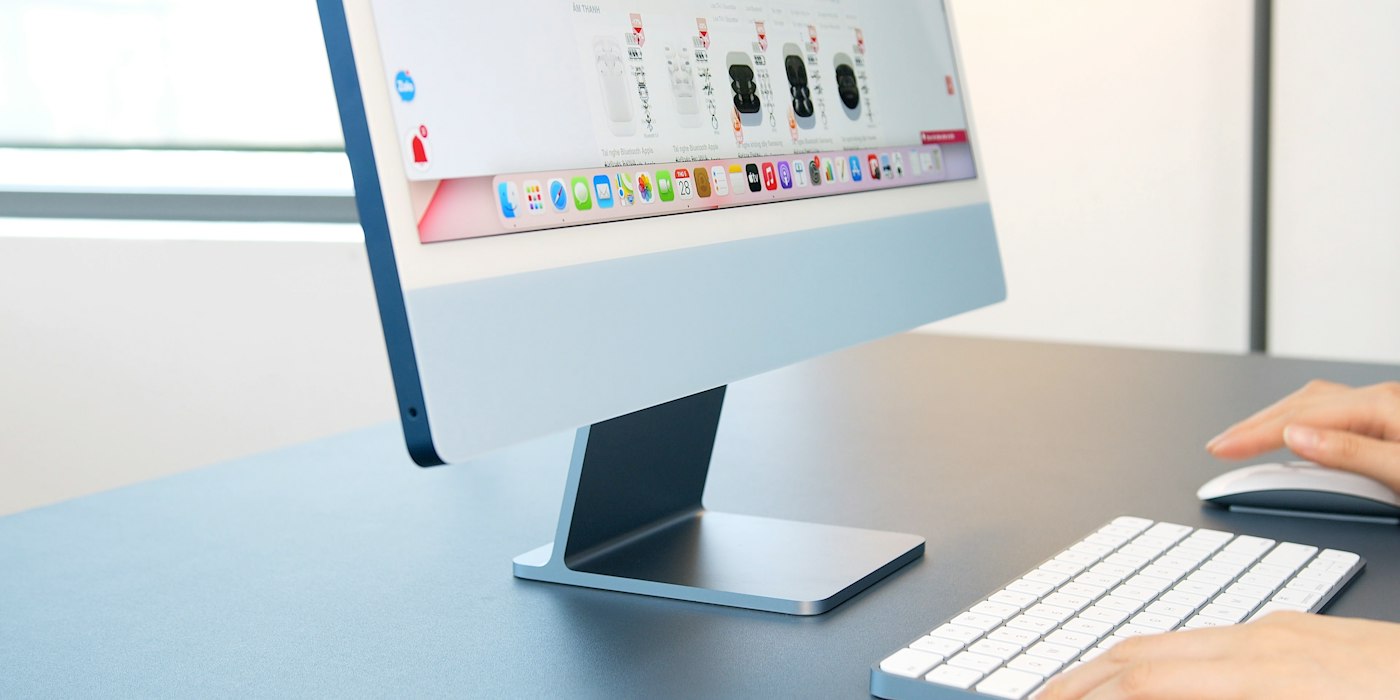










If your Mac won’t connect to Wi-Fi or keeps dropping, try these fixes.
Before You Start
- Check other devices connect.
- Restart Mac.
1. Turn Wi-Fi off and on
Use the Wi-Fi icon in the menu bar.
2. Forget the network
System Settings > Wi-Fi > Details next to the network > Forget This Network, then reconnect.
3. Restart Mac and router
Restart both.
4. Run Wireless Diagnostics
Hold Option, click the Wi-Fi icon and choose Open Wireless Diagnostics.
5. Check VPN and security apps
Temporarily disable them to test.
6. Update macOS
Updates often fix Wi-Fi bugs.
Why This Happens
Mac Wi-Fi problems come from network settings, router issues, VPNs or macOS bugs.
Still Not Working? Try These Advanced Fixes
- Delete and re-add the network.
- Create a new network location in Network settings.
- Reset NVRAM on Intel Macs.
How to Prevent This Problem
- Update macOS.
- Restart router regularly.
Quick Troubleshooting Table
| Problem | Try this |
|---|---|
| Won’t connect | Forget network |
| Slow | Run Wireless Diagnostics |
| Drops | Check VPN |
Frequently Asked Questions
What is Wireless Diagnostics?
A built-in Mac tool for Wi-Fi problems.
Does Bluetooth affect Wi-Fi?
Sometimes, through interference.