








If other devices connect fine but your Android phone doesn’t, try these steps.
Before You Start
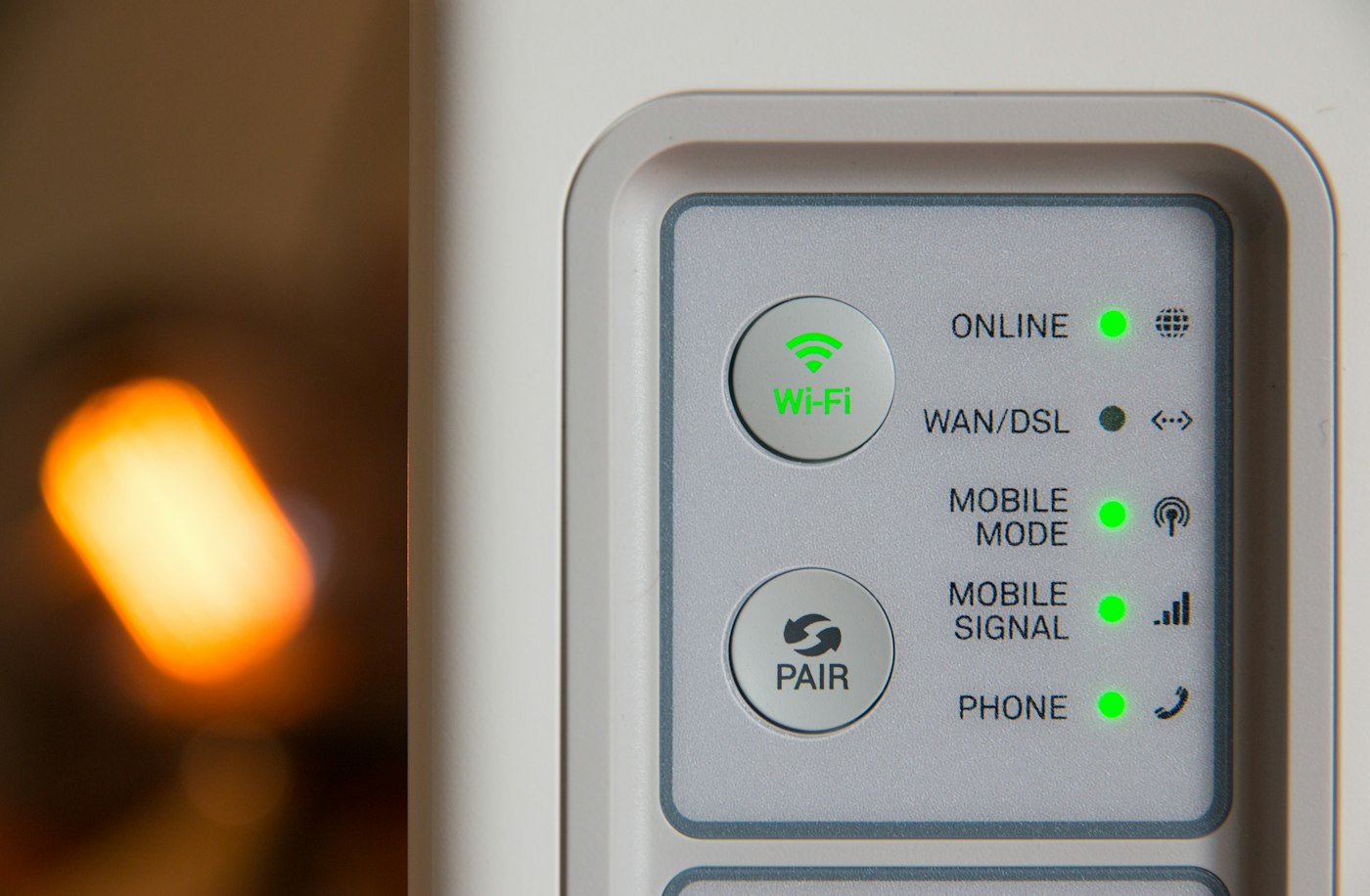
- Check other devices can connect to the same Wi-Fi.
- Make sure airplane mode is off.
- Move closer to the router.
1. Toggle Wi-Fi and airplane mode
Turn Wi-Fi off and on, or turn airplane mode on for 10 seconds and off again.
2. Forget the network
Go to Settings > Network & internet > Wi-Fi, tap the network and choose Forget. Reconnect with the password.
3. Restart phone and router
Restart both devices.
4. Turn off private DNS or VPN
A VPN or custom DNS can block connections. Disable them to test.
5. Reset network settings
Settings > System > Reset options > Reset Wi-Fi, mobile & Bluetooth. You’ll need to re-enter Wi-Fi passwords.
Why This Happens
Android Wi-Fi problems are often caused by saved network errors, router issues, MAC randomisation, VPN apps, power-saving settings or outdated software.
Still Not Working? Try These Advanced Fixes
- Turn off “Use randomised MAC” for your home network (in network details).
- Switch the router between 2.4 GHz and 5 GHz bands.
- Disable Wi-Fi scanning and adaptive Wi-Fi features temporarily.
- Update router firmware.
How to Prevent This Problem
- Restart your router weekly.
- Keep phone software updated.
- Avoid unknown VPN apps.
Quick Troubleshooting Table
| Problem | Try this |
|---|---|
| Saved but won’t connect | Forget network |
| Connected, no internet | Restart router |
| Keeps dropping | Turn off power saving |
| Authentication error | Re-enter password |
Frequently Asked Questions
Why does my phone say “Saved”?
It remembers the network but can’t connect; forget and rejoin.
Does a phone case affect Wi-Fi?
Usually not, unless it contains metal.