







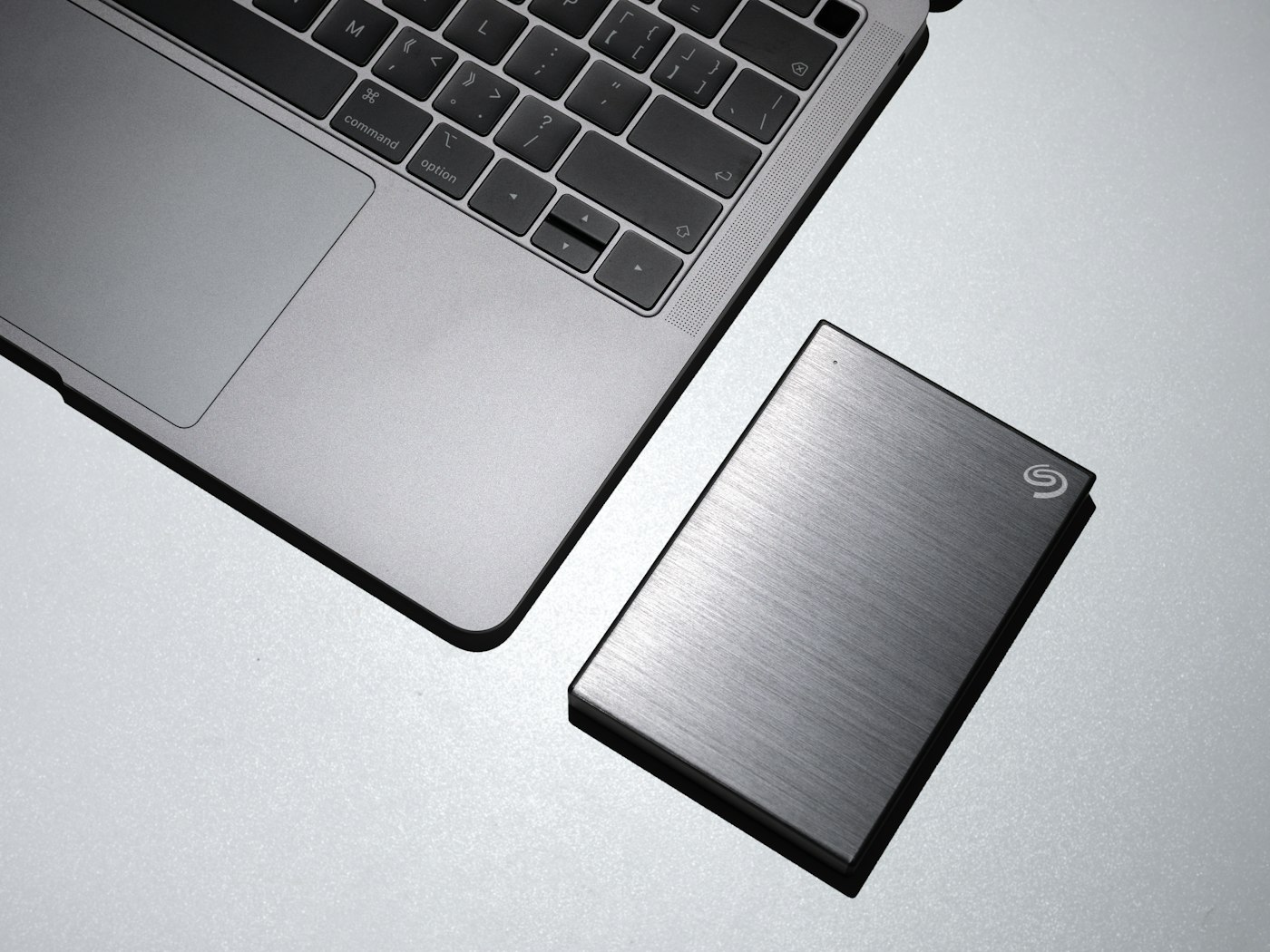
If your external drive isn’t appearing, check the connection and disk settings.
Before You Start
- Try another cable and port.
- Listen for the drive spinning.
1. Try another port and cable
Many problems are caused by faulty cables.
2. Check Disk Management (Windows)
Right-click Start > Disk Management. If the drive is listed without a letter, right-click and choose Change Drive Letter and Paths.
3. Check Disk Utility (Mac)
Open Disk Utility and click Mount if the drive is listed.
4. Check Finder settings (Mac)
Finder > Settings > General, tick External disks.
5. Don’t format if you need the data
If asked to format, decline. Formatting erases data. Seek data recovery help instead.
Why This Happens
External drives may not appear due to cable faults, missing drive letters, unsupported formats or power issues.
Still Not Working? Try These Advanced Fixes
- Use Disk Management to assign a letter.
- Try the drive on another computer.
- Use data recovery services if the drive is damaged.
How to Prevent This Problem
- Eject drives safely.
- Keep backups in more than one place.
Quick Troubleshooting Table
| Problem | Try this |
|---|---|
| Not detected | Try another cable |
| Detected, no letter | Assign letter |
| Asks to format | Don’t format if data is needed |
Frequently Asked Questions
Why does it ask to format?
The file system may be unreadable.
Can Mac read Windows drives?
Mac can read NTFS but not write by default.